Event Grid Overview
Azure Event Grid is a fully managed event routing service in Azure that acts as an intelligent intermediary between event publishers and subscribers. In our case, instead of having Microsoft Graph send change notifications directly to our application via webhooks to Azure Functions using HTTP triggers, we’re going to have it send those events to Event Grid, which will then route them to our Azure Functions using Event Grid triggers. The benefit here is that Event Grid handles all the messiness of retry logic, dead-lettering, and monitoring for us, a godsend. Also, it doesn’t seem to be bothered by consumption based Azure Functions which can have latency in responding due to the start up time associated with a function that’s not currently running. For Microsoft Graph API integrations, Event Grid supports partner topics specifically designed to handle change notifications for resources like SharePoint lists, Teams messages, Outlook calendar events, and more. In this post we’re going to focus on setting up Event Grid to handle SharePoint list change events.
If you all listen to me on the Code. Deploy. Go Live. Podcast you’ll know I’m a huge fan of implementing infrastructure as code via a CI/CD pipeline. I admit that for Event Grid setup I haven’t implemented it. It’s not to say that I couldn’t I just feel like it’s overkill for the one time setup that feels to me simple enough to not need it, but certainly in a more formal environment with more to manage that would be a great addition.
TL;DR
Here’s the process in a nutshell:
- Create and deploy your Azure Functions with Event Grid triggers
- Register Event Grid resource provider and create Partner Configuration in your resource group
- Create the Graph API subscription using CLI for Microsoft 365 (or your tool of choice)
- Activate the Partner Topic in Azure and wire up Event Subscriptions to your functions
Now let’s dive into the details…
The Process
The process is quite simple, although rather tedious, and depends somewhat on what event you’re subscribing to. Here’s the order I recommend:
First, create your Azure Functions to be the targets for the events. You’ll need at least two but depending on what you’re subscribing to, possibly more. After you get your functions at least minimally developed and deployed, you’ll be able to create the Event Grid Partner Configuration in your resource group, and then create the subscription for the event you want to monitor. Once you’ve done that you can go back to Azure and wire up the subscription to the functions.
Now, you can do this in reverse but there’s no real benefit. Here’s why: One, the Event Grid Partner Configuration has an expiration date for how long it’s open for you to create subscriptions against. You can obviously renew it after it expires but it’s an extra step with no benefit. Two, if you create the subscription but haven’t wired it up yet, it’s going to fire without being handled. If the subscription expires before you wire it up, you’ll have to delete it and recreate it—extra work for no reason.
Also, heads up—you can accidentally create multiple subscriptions to the same event with the same name. The GUID is the unique identifier, but when you wire things up you’re wiring by the Event Grid Partner Topic name, so you can end up with multiple event calls. I did this to myself by accident, but once I figured that out and deleted the redundant subscription, everything was fine. The upside of this behavior though is that if your subscription expires accidentally (maybe you have a bug in your renewal code or something), you can recreate the subscription with the same name and everything will just start working again.
Prerequisites: Create Azure Functions for Event Grid Triggers
Before you even start configuring Event Grid you’re going to want to have Azure Functions deployed that will manage the change event you’re tracking plus the subscription you’re going to create for that event. I speak about this process at various events, but barring that there is a public repository Change Events: Event Grid that has my baseline code for creating those functions via NodeJS. Feel free to use them as a basis for your own implementation.
Step 1: Register and Configure Event Grid Partner Configuration in your Resource Group
The first step is to register the Event Grid resource provider with your subscription, you can follow the steps for that in the documentation. You need to do this only one time per subscription.
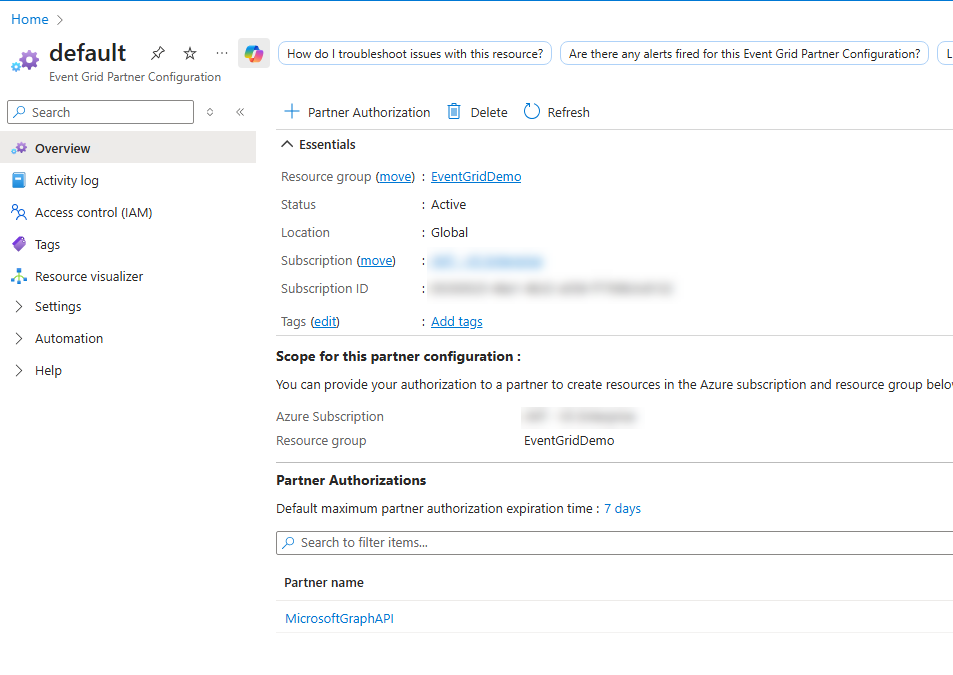
After that you can create an Event Grid Partner Configuration in your resource group where the Azure Functions you created in the Prerequisites step were deployed.1 At the time of writing this there are four authorized partners, one of which is the Microsoft Graph.2 Essentially you need to add a default partner configuration into the same resource group as the azure functions you created to handle the events.
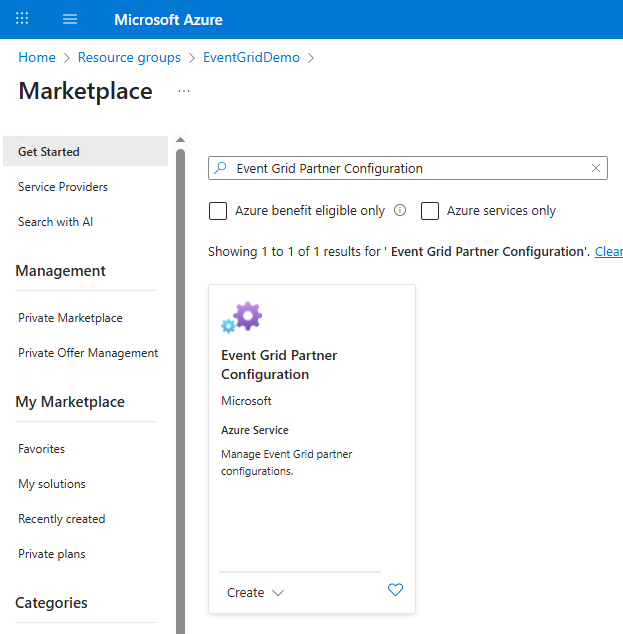
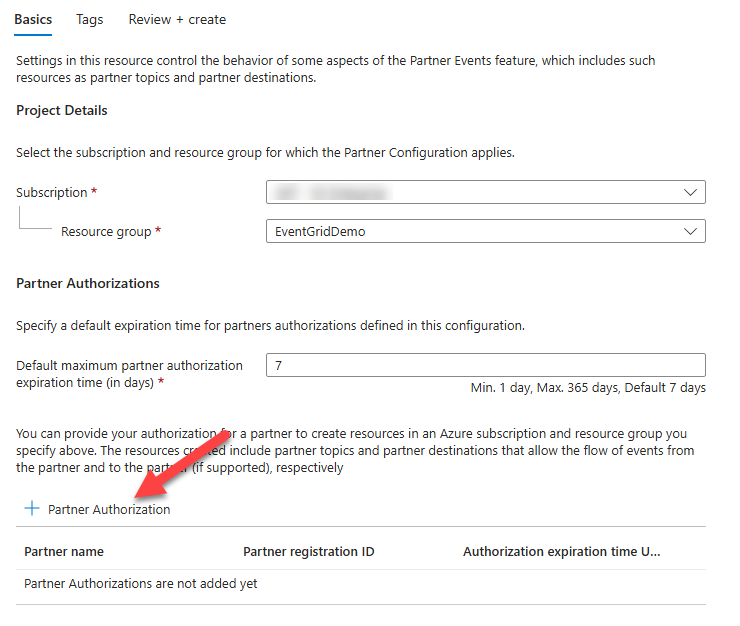
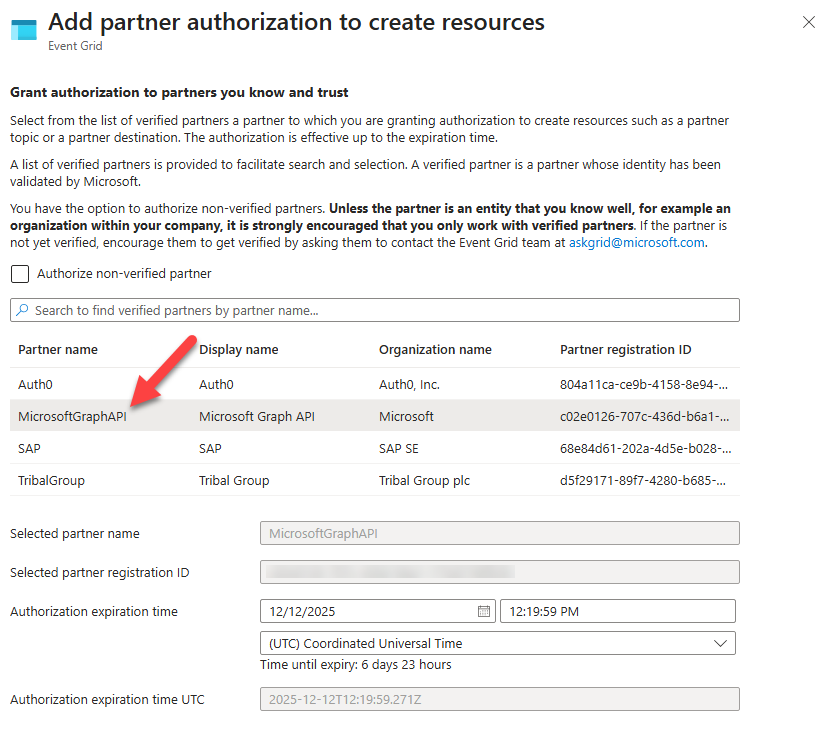
1 They don’t have to be in the same resource group but in general that configuration tends to make the most sense. That said, if you have a lot of azure functions to handle change events for SharePoint lists you could theoretically make just one Azure Function (potentially in a different resource group) that would be the generic handler for subscription renewals instead of duplicating that function in a bunch of different apps. It’s an architectural discussion more than a technical discussion so use your best judgement to meet your own needs.
2 You can create your own that are then unauthorized, this might be an interesting architectural scenario in some cases.
Step 2: Register Your Event Grid Partner Topic
The next step is to create your subscription. Based on the event you want to subscribe to there are various limitations and caveats—you can see a full listing in the documentation. For this example we’ll use “list under a SharePoint site”.
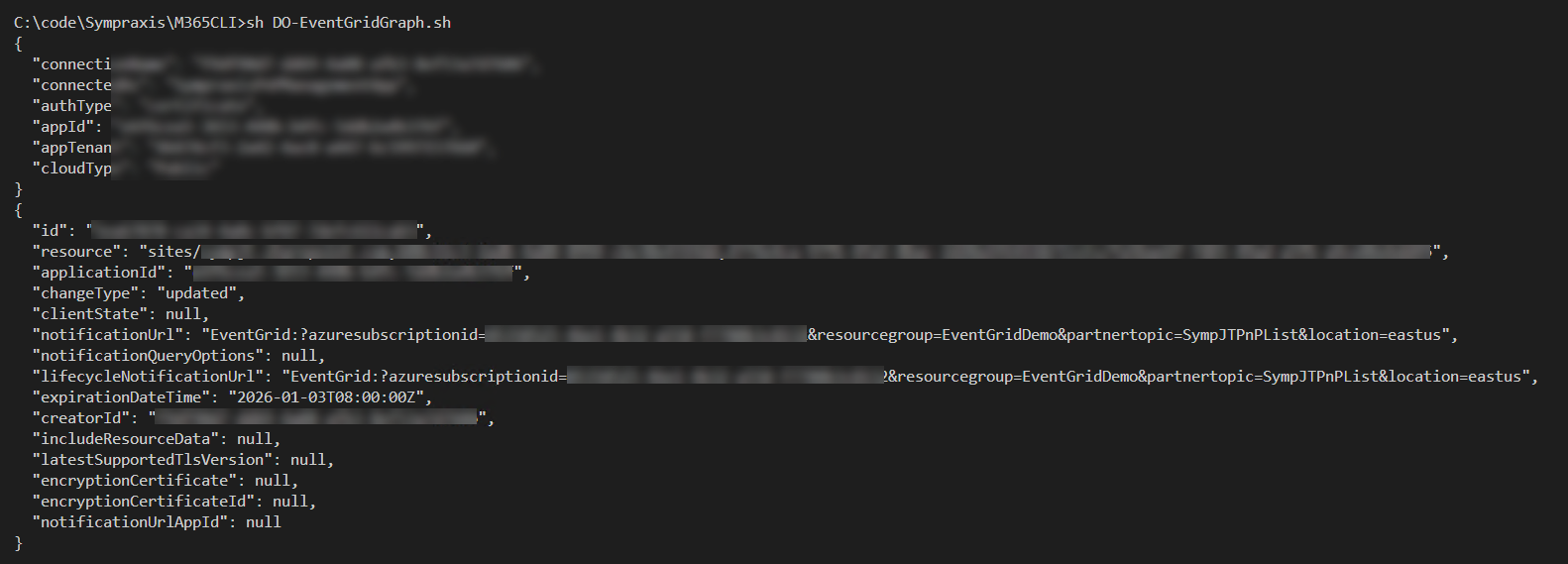
To create our subscription you can use whatever tool you like to make a Microsoft Graph call. I personally prefer the CLI for Microsoft 365—specifically the graph subscription add command. You could also use the Microsoft Graph Explorer or Postman, there are lots of options. I actually bounce between the CLI and Graph Explorer because the CLI doesn’t have a “list subscriptions” command, so when I need to check existing subscriptions I just do a GET call on the subscriptions endpoint in Graph Explorer.
Sample bash script to create a SharePoint list subscription partner topic
NOTE: You’ll have to create your login configuration to match your tenant. For more information on using the CLI for Microsoft 365 see the documentation.
m365 login *****

azureSubId='0a9999ab-7700-4c5f-82bf-8919999c76b3'
resourceGroup='ContosoProject'
resourceType='sites/contoso.sharepoint.com,8720413e-adae-45fe-b116-e9a5af8184ae,7c038e4b-abdd-49d7-9f63-2a789995f67b/lists/987c1235-0231-40aa-b045-ec789adb5de6'
partnerTopic='ContosoProjectList'
partnerTopicRegion='eastus'
# For SharePoint lists
changeTypes='updated'
notificationUrl='EventGrid:?azuresubscriptionid='$azureSubId'&resourcegroup='$resourceGroup'&partnertopic='$partnerTopic'&location='$partnerTopicRegion

Today=$(date)
# Add x days to the current date and time, the following shows max subscription length for each event type
# https://learn.microsoft.com/en-us/graph/api/resources/subscription?view=graph-rest-1.0#subscription-lifetime
ExpTime=$(date -d "$Today + 29 days" +%Y-%m-%d)

#Create a subscription for Event Grid Partner Topic
m365 graph subscription add --resource $resourceType --changeTypes $changeTypes --notificationUrl $notificationUrl --lifecycleNotificationUrl $notificationUrl --expirationDateTime $ExpTime
Step 3: Configure the Partner Topics
The final step is to wire things up.
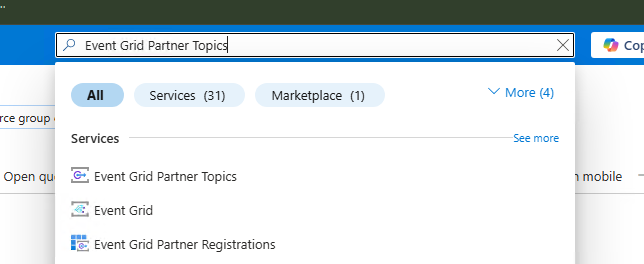
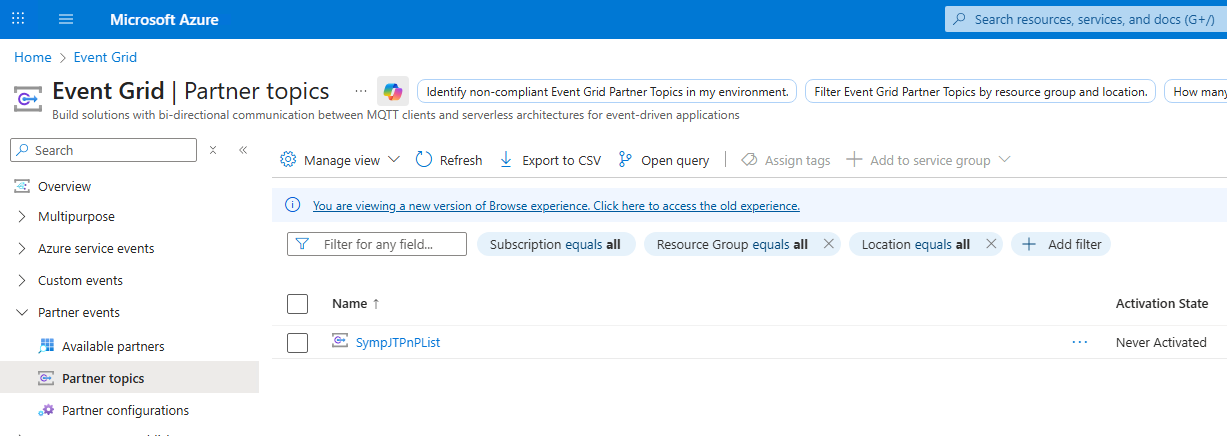
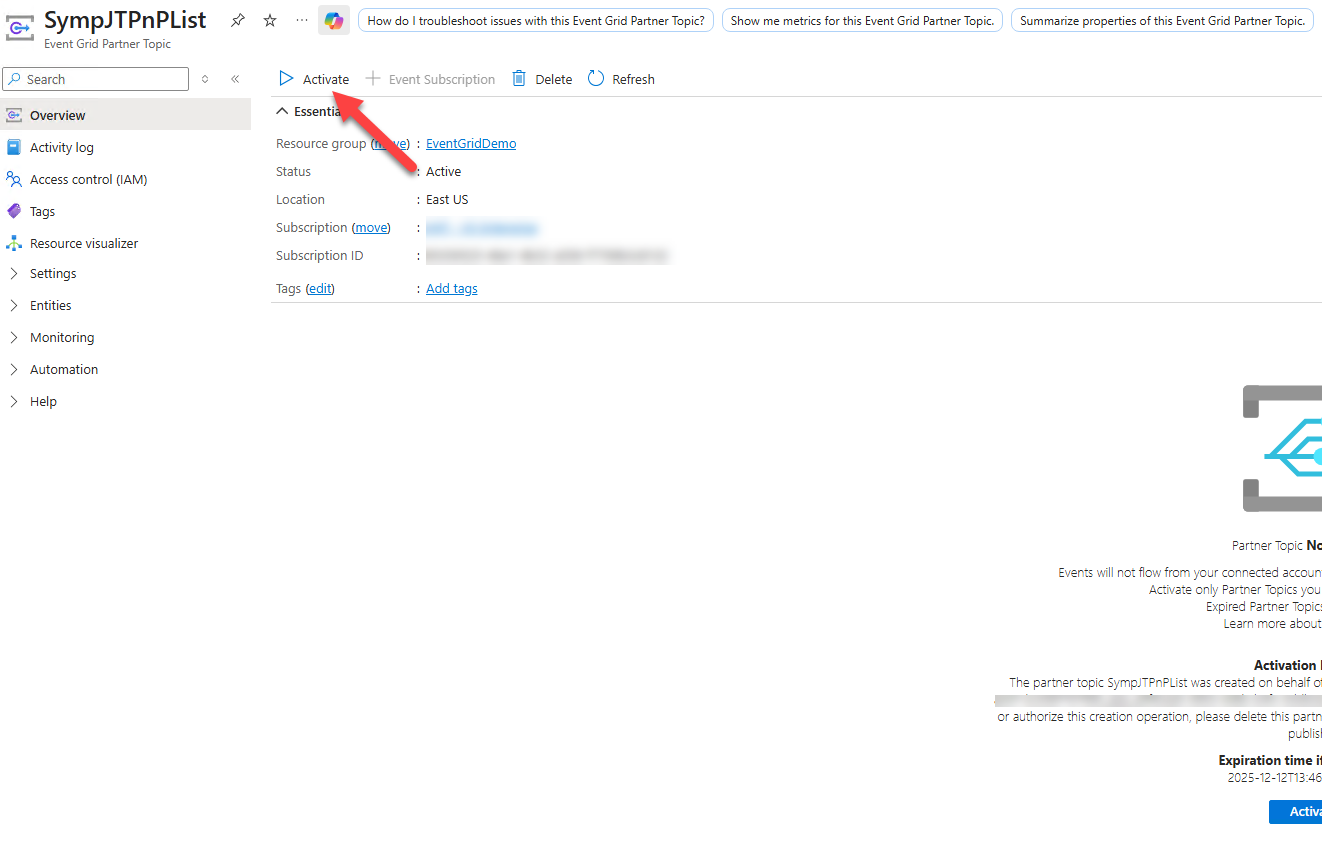
Once you’ve activated the partner topic you’ll see a UX that can show you the events being received. This is a good place to monitor events coming in.
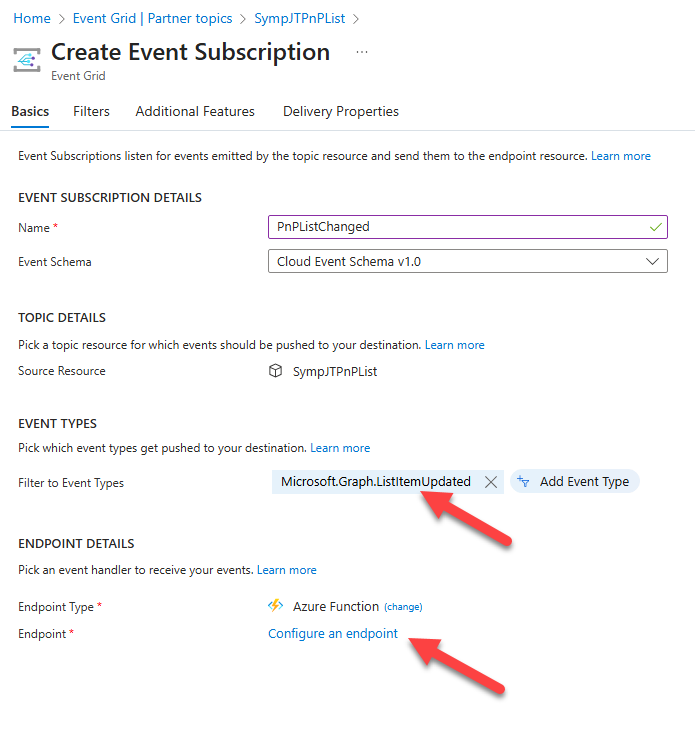
Now you’ll need to add Event Subscriptions. These subscriptions let you filter which events get routed to which Azure Functions. This is important because you’ll likely want different functions handling different event types.
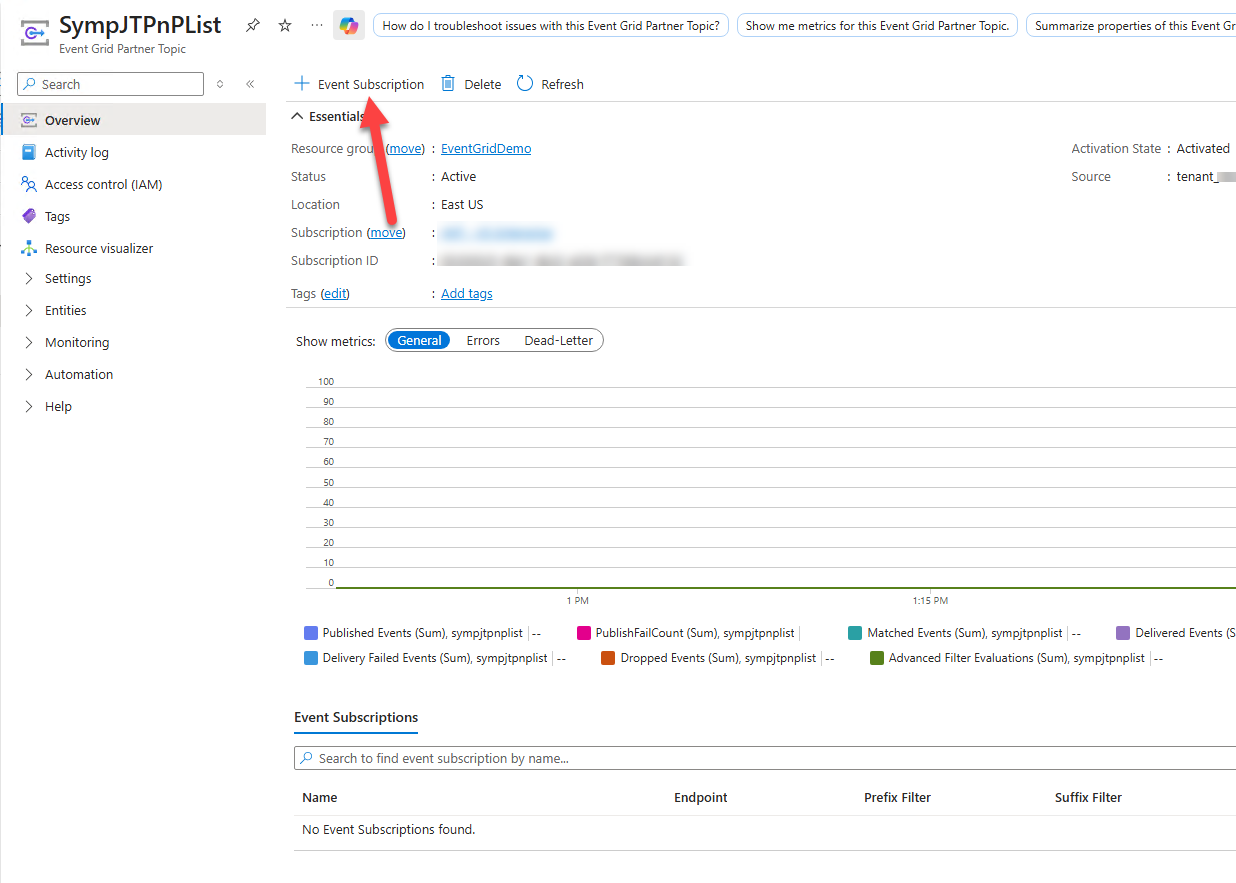
As of writing this I have still not found a reference that tells me the exact text for the Event Types for filtering. I had to let it fire the first time and then see what the event types were and then apply the filter to route them. I can tell you for SharePoint lists the two events I filter for are:
- Filter type “Microsoft.Graph.ListItemUpdated” for SharePoint lists item change events
- Filter type “Microsoft.Graph.SubscriptionReauthorizationRequired” for reauthorization notifications.
If someone finds a good way to get the exact values for each of the event types (before they fire) I’d love to hear about it.
Otherwise I create two Event Subscriptions, one that delivers my list change events to a specific event grid triggered Azure Function and another that delivers the subscription reauthorization for handling.
// For List Item Changed Event
app.eventGrid('eventGridListChanged', {
  handler: eventGridListChanged,
  extraOutputs: [queueOutput]
});

// For Subscription Reauthorizations
app.eventGrid('eventGridSubscription', {
  handler: eventGridSubscription,
  extraOutputs: [queueOutput]
});